
Two monitors take up more room than their diagonal sizes suggest. Measure each screen from edge to edge, then work out where the keyboard, mouse and laptop will go. If you already have one external monitor, try using the laptop as the second screen before budgeting for another display.
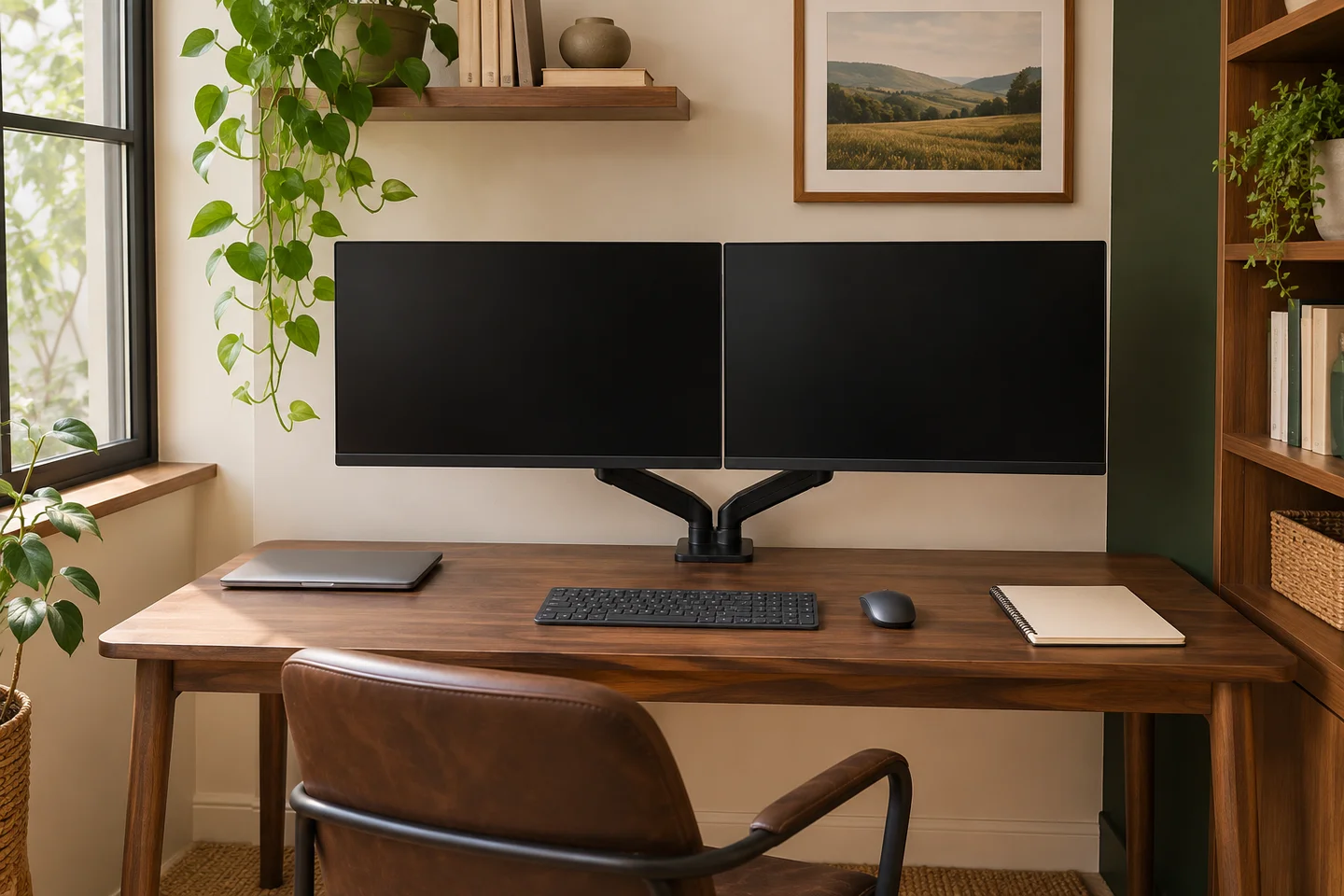
Compare three layouts for a compact desk
| Layout | Best for | Trade-off |
|---|---|---|
| One monitor and the open laptop | Keeping chat or reference notes beside your main screen | The screens sit at different heights. A laptop stand can take up writing space. |
| Two external monitors on their own stands | Using screens you already own with minimal setup | Two wide bases can crowd the keyboard. Measure both bases with cables attached. |
| Two external monitors on a dual arm | Freeing the area directly under the screens for notes or a keyboard | The desk must support the clamp, and the arms may need room to fold behind it. |
Measure what the screens and stands actually occupy
Use the product’s outside width and base depth. Lay painter’s tape or paper templates on the desk for the bases, keyboard and mouse. Leave room for plugs behind each screen. If you spend most of the day using one display, center that one in front of you and turn the secondary display slightly inward. If you split your attention evenly, test sitting in front of the seam.
Two displays that each measure 21 inches across, with a 1-inch gap, take up 43 inches when aligned. That leaves 5 inches of total spare width, or about 2½ inches per side if centered.
A stand that reaches 9 inches forward from the back edge leaves 15 inches of desk depth in front of it. Lay out the keyboard, mouse and notebook in that space to see whether you can use all three together.
For a dual arm, check the mounting pattern and each display’s weight without its original stand. Compare the clamp range with the desk thickness at the mounting point. A rear apron or cable tray can block the clamp even when the desk top is within range. See the monitor arm vs. riser guide for more ways to check the fit.
Check the laptop before buying a dock
- Find your exact laptop model and check the manufacturer’s maximum number of external displays, supported resolutions and refresh rates, and any lid-open or lid-closed requirements.
- Trace each connection from the laptop to the screen. Confirm that the port supports video and that the dock and both cables support the two-screen configuration you want.
- Look for two extended displays in the dock’s compatibility notes for your operating system. Extended mode gives you separate workspaces. Mirroring repeats the same image on both screens.
For Macs, the number of supported screens and their display settings depend on the model and connection. Check Apple’s external display guidance and your exact model’s specifications. For the separate question of charging while using video, see the USB-C hub guide.
Budget for the part that solves your problem
Try the laptop and one screen first if you mainly need a place for messages. If you already own one external monitor and want to add a second, an example $195 planning budget is $110 for a screen, $65 for a dual arm and $20 for cables. This example assumes your laptop can already drive both screens with compatible connections and excludes a dock, shipping and tax. Compare live prices before ordering.
If you mainly need to switch between a work laptop and a personal computer, compare ways to share one screen and one set of controls before adding a second monitor.
Compare dual-monitor accessories on Amazon US
Affiliate disclosure: As an Amazon Associate I earn from qualifying purchases.
- Compare compact monitors with VESA mounting. Check actual width, available inputs and the mounting pattern.
- Compare dual monitor desk arms. Compare per-arm load ranges, clamp opening and clearance behind the desk.
- Compare vertical laptop stands. Check the slot width against laptop thickness and leave its vents clear.
- Compare docks with two display outputs. Check that your exact laptop and operating system support two extended displays at the desired settings.