
If you alternate between a work laptop and a personal computer, you can keep one monitor, keyboard and mouse on a small desk. Start by checking what your monitor and peripherals already support. You may only need a second video cable, or you may prefer a switch that changes the screen and controls together.
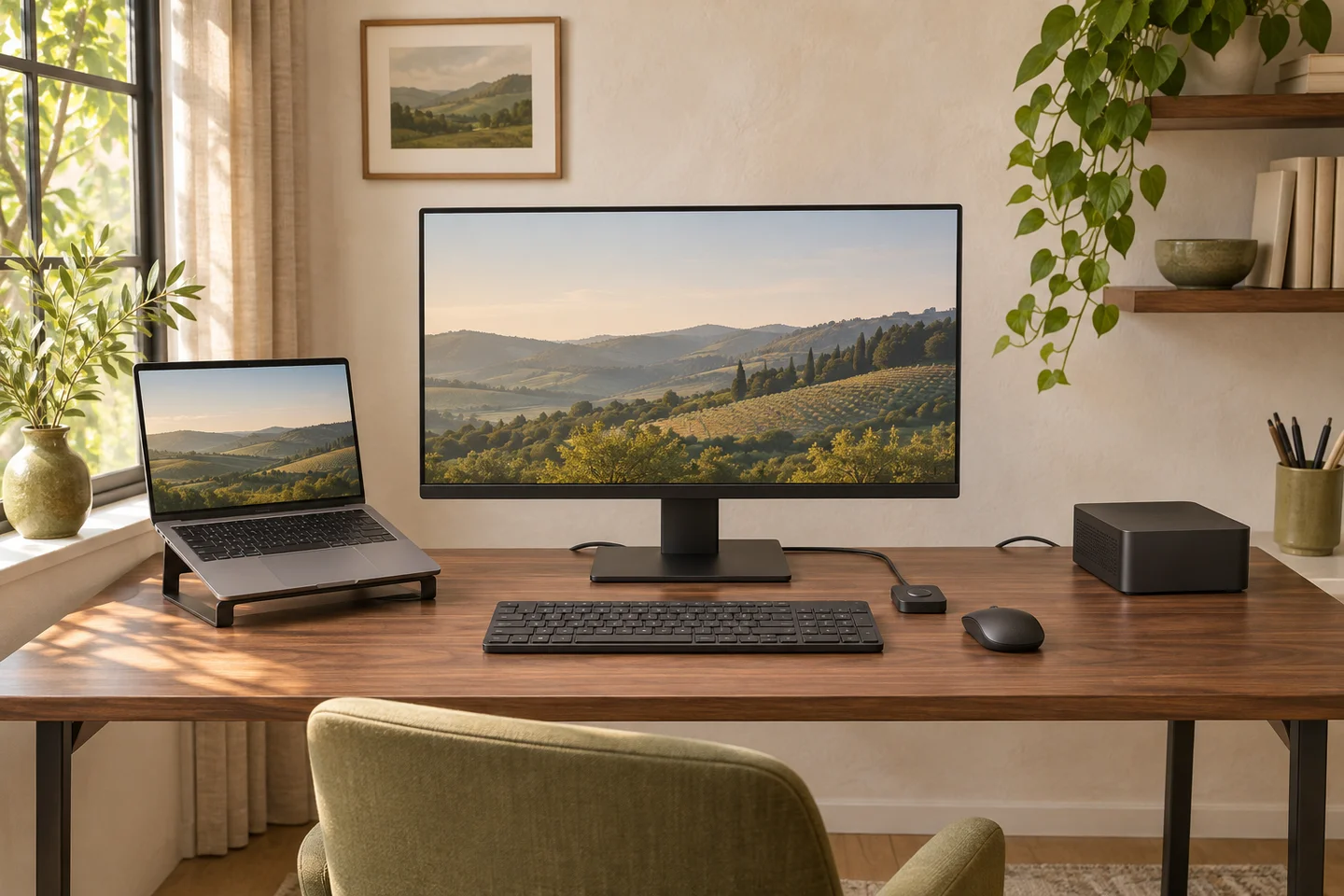
Compare three ways to switch between computers
| Setup | How you switch | Trade-off |
|---|---|---|
| Separate monitor inputs and multi-device keyboard and mouse | Change the monitor input, then use the device selector on the keyboard and mouse. | Reuses existing equipment if it already supports this. Takes more than one action. |
| Separate monitor inputs and a USB sharing switch | Change the monitor input, then press the USB switch button to move the controls. | Works for many wired inputs and compatible wireless receivers. Check support for your exact devices. The USB switch does not change the screen input. |
| A KVM switch, external or built into a monitor | Switch the keyboard, video and mouse together once the inputs are set up. | Requires compatible video and USB connections for both computers. Check resolution, refresh rate and the ports you need. |
Make a connection list before buying anything
- Monitor: List the inputs you can actually use, such as HDMI, DisplayPort or video-capable USB-C. Check how quickly you can select each source.
- Both computers: List a video output and a USB data connection for each one. For USB-C, check that the specific port and cable support the role you need. Confirm charging separately if you expect the same cable to power the laptop.
- Keyboard and mouse: Identify the connection each one uses. Plug a compatible USB receiver into a sharing switch or KVM if the manufacturer supports it. A Bluetooth device paired directly to a computer normally changes hosts through its own pairing controls.
Some monitors with built-in KVMs require you to pair each video input with the matching USB connection back to that computer. Check the manual for your exact monitor. Dell’s KVM setup guide illustrates this kind of setup. If you use a dock, also see the USB-C hub compatibility guide.
Connect the laptop to one monitor input using a video-capable USB-C connection supported by both devices. Connect the desktop using HDMI on another input. For a basic USB sharing switch, connect it to a USB data port on each computer and plug the keyboard and mouse into the switch. The monitor button changes the image and the switch button moves the controls.
Test the switch in both directions
Try each computer directly with the screen at your normal resolution and refresh rate. After connecting a switch, move from work to personal and back again. Check that typing and clicks reach the machine shown on screen, and repeat the test after waking both machines from sleep. Try any extra device, like a webcam, separately if you intend to share it. On a work computer, check your employer’s approved equipment rules before connecting a new switch or receiver.
Budget for the step you want to simplify
If your monitor and input devices already switch between hosts, try them first. Use $35 for a basic USB sharing setup or $75 for an entry-level KVM setup as separate planning examples for the switch and essential cables. These examples assume you already own the monitor and controls. Check live prices and make sure a switch supports your required video mode before you order.
Compare two-computer desk accessories on Amazon US
Affiliate disclosure: As an Amazon Associate I earn from qualifying purchases.
- Compare two-computer USB switches. Check upstream and peripheral ports.
- Compare single-monitor KVM switches. Match input ports, output ports, resolution and refresh rate.
- Compare multi-device keyboard and mouse sets. Check how each device changes hosts and how many hosts it remembers.