
Choose the accessory that fixes a problem you already have. A stand can move the laptop display up, a compact keyboard can free room for the mouse, and a USB-C hub can reduce the number of connections you swap during the day.
Map out a laptop-first workspace
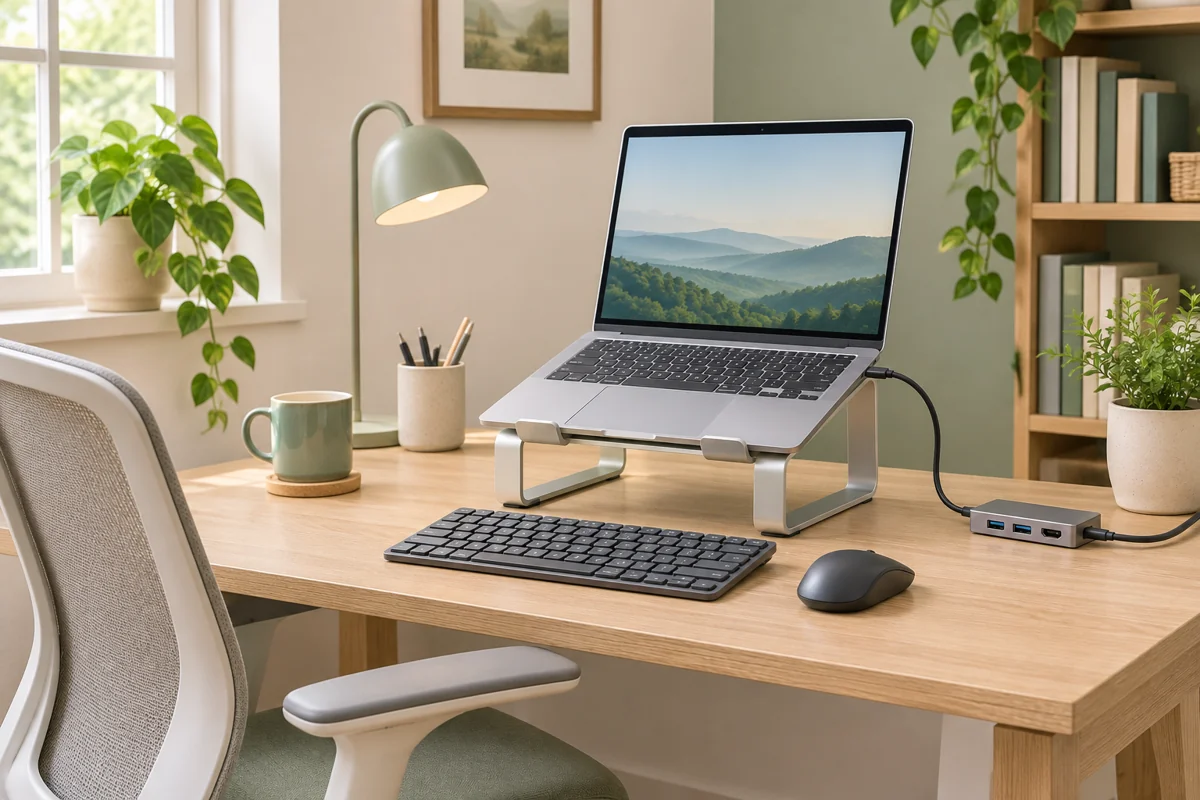
- Mark a useful work area. Tape out a 36 × 20-inch surface as a planning example. Set the stand behind the keyboard and leave space beside the mouse for a notebook.
- Choose the first upgrade. A stand raises the display but usually needs separate input devices. Try a compact keyboard if the mouse area is crowded; choose a full-size model if you use a number pad daily.
- Measure the hub and cable route. Allow room for connector bends. Confirm the laptop supports the external display and charging features you need before paying for a hub.
These picks compare published specifications and practical fit. Check the exact variant, current availability, and return terms on Amazon US.
| Product | Best fit | Check before ordering |
|---|---|---|
| Rain Design mStand | A stable, raised laptop position | The laptop’s base dimensions and whether fixed height suits your setup |
| Logitech Pebble Keys 2 K380s | More space next to a keyboard | Bluetooth support and whether you use a separate number pad |
| Anker 332 USB-C Hub | Connecting a monitor and several devices | Video support on the laptop port, display refresh rate, and charging needs |
Start with the Rain Design mStand if your laptop sits too low
The silver mStand is a fixed stand. Its published rise is about 5.9 inches, so test that position with the laptop on a stable surface before buying. Plan where your external keyboard and mouse will sit. Measure the laptop’s footprint and make sure the stand and plugged-in cables fit behind the space you need for writing.
Try the Logitech K380s if the mouse area is crowded
The K380s uses a compact layout and can switch between paired devices. A compact board can make sense when you regularly run out of space beside the keyboard. If you enter numbers throughout the day, check whether you want an external number pad or a different layout. Confirm your device pairing and language layout for the listed variant.
Choose the Anker 332 if you need more connections
Anker lists HDMI output up to 4K at 30 Hz on model A8355, plus USB data ports and pass-through charging. If you want 4K at 60 Hz, choose a different hub. Verify that your laptop’s USB-C port supports video output and check how charging works with the charger you already have.
Check USB-C monitor and charging compatibility before choosing a hub for one-cable work.
Make a one-minute connection list
Write down everything that must be connected at the same time. Include your monitor, charger, and any storage devices. Mark the ports beside your laptop that are already available. Use the missing connections to decide whether you need a hub at all.
Manufacturer references
Continue planning your workspace
If your main goal is making more space for the mouse, compare compact keyboard layouts by width before deciding which keys you can move to a shortcut layer.
Compare options on Amazon US
For an $80 accessory budget, allocate $30 to the stand, $25 to the keyboard and $25 to connectivity, or shift the amount to the one upgrade you need. These amounts are sample budget allocations in USD. Check the current item price and availability on Amazon.
Load the $80 example in the budget calculator
As an Amazon Associate I earn from qualifying purchases.
Specific models
- Rain Design mStand · Silver, model 10032. Check Rain Design mStand on Amazon US (paid link)
- Logitech Pebble Keys 2 K380s · Tonal Graphite. Check Logitech Pebble Keys 2 K380s on Amazon US (paid link)
- Anker 332 USB-C Hub · 5-in-1, model A8355. Check Anker 332 USB-C Hub on Amazon US (paid link)
Browse alternatives
- Compare adjustable laptop stands on Amazon US (paid link)
- Compare compact Bluetooth keyboards on Amazon US (paid link)
- Compare 5-in-1 USB-C hubs with HDMI on Amazon US (paid link)